Capturing
video & making DVDs in Panther:
- One
user's practical solutions, October 2004
1. Capture:
Final Cut
Pro fails to capture in Panther 10.3.2: going back to 10.3 works fine, and
Final Cut Pro works fine under 10.3.3, but my internet connection doesn't,
so I've stayed with simple 10.3.
When I capture
something more than about ten minutes long, the sync between audio and video
is unusable, getting worse with time until in the end it's several seconds
out. The tips in the manual all seem to suppose that frames have been lost
and that resources are inadequate, but that doesn’t answer my case -
it all worked fine before QT 6.4 and 6.5 came along; the discussion on Apple's
web-site tended to blame it on the camera, which is also not the case for
me. But anyway if you have that problem you can capture in clips of 5 minutes,
or even 10, using log clip and batch capture: it's rather straightforward,
intuitive and quick, and the clips join up again seamlessly afterwards.
In the capture
window:
- set the starting
point, bottom left
- seems
you can't start closer than about 30" to the beginning of the tape:
if you need something from that area, you can use 'capture now'
- set the duration,
top right, e.g. "10.." for ten minutes
- click 'log
clip'
- then start
again:
- the 'out'
timecode of the previous clip is by default entered as the 'in' of the
next one, which means you get a duplication of one frame: I found it was
worth increasing that number by one each time to avoid that
- when you're
done, click on the 'batch clip' button
- you get
to choose between selecting 'all items in logging bin', 'off-line items',
or 'selected items'
- when it's
done, you can select all and drag them together to the canvas, 'insert' without
transition, and they all line up as if they'd been captured as one clip
2. Encode to MPEG2
- you can let
DVD Studio do it, of course, but there are advantages in doing it in Final
Cut or QuickTime Player;
- from Final
Cut you can export direct to MPEG2 (the MPEG2 module is installed with
DVD Studio, or you can buy it separately from Apple): but I found I didn't
get chapter tracks that way
- so for a while I was
using QT Player, first exporting as QT movie from FCP, 'chapter markers'
= yes, 'self-contained' = no; then from QT player export as MPEG2; that
gives me the chapter markers, and I suspect it might be quicker too; it
usually takes about real time x 2, sometimes more, I haven't found out
why yet
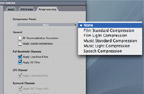
- but now with Final Cut Studio, Compressor seems the obvious way to go: Apple's pre-sets work fine for both DVD and H264 for the www: and I've made a few custom pre-sets which also seem to work fine, one with 2.5 kb/sec which gives about three hours of video on a DVD and the quality still seems OK, another with 160 x 120 px for dial-up internet connections but with better sound than Apple's pre-set
- I met a guy at an Apple
seminar last week who said he was getting three hours on a DVD with no
noticeable loss of quality, by using BitVice from www.innobits.se:
$149
- And now (2007) I've just discovered a wonderful gadget which offers as much as 18 Gb on a DVD, for only $23.32, VisualHub
- choice of encoding methods:
- Constant bit-rate,
one-pass CBR: same bit-rate for everything
- pro: you
can reliably predict the size of the final encoded file to make sure
it fits your disc
- con:
you might 'waste' space by using a bit-rate which is higher than it
needs to be for some parts of your material
- use it
when your video is all of a similar nature and time matters
- Variable bit-rate,
VBR, one-pass: within the limits you set, more motion gets higher
bit-rate, less motion gets lower bit-rate
- pro: you
get more effective use of the space on your disc
- con:
you can't predict the final size, you might find the material doesn't
fit on your disc
- use it when
your video varies a lot, time is important and space isn't so important
- Variable bit-rate,
VBR, two-pass: the first pass examines the material, the second
pass encodes it, and you get to determine the final file size
- pro: you
get more effective use of the space on your disc and you can reliably
predict the size of the final encoded file to make sure it fits your
disc
- con:
it takes twice as long as one-pass VBR
- use it when
your video varies a lot, space is important and time isn't so important
- calculating a target file-size:
- in the MPEG2 options
of the QuickTime 'export' dialogue-box, you specify a target bit-rate,
which is reflected in a target file-size; in my experience the result
is rather close to the estimate: with a movie of 130 minutes, I set it
for 4.0 Gb, it came out at 4.01 Gb
- however the software
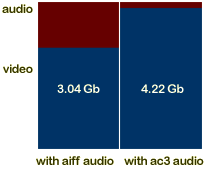
assumes that you will use the .aiff file which it produces for the sound-track,
which is about one-third of the total; but the file I got using A.Pack
to compress the .aiff at 192 kbps was only 13% of the original, reducing
the total by more than a quarter, so that the sound-track is only 5.5%
of the total
-
that means that if you're
going to use A.Pack to compress the sound-track you have that much more
space to use for the video - 94.5% of the total instead of 66%, which
for my 130 mins made a real quality difference between 3.4 and 5.1 mbps;
in the MPEG2 options dialogue-box you can de-select 'audio', set the quality
to produce a target size which will fill (say) 90% of your space, then
select 'audio' again afterwards.
- for one project I did
the sums and came up with 4.23 Gb total content, which previous experience
suggested was a reasonable margin: but for once the actual MPEG2 files
produced were 5% over the estimates, and even with my margin the final
DVD files were 4% more than there was room for on the DVD; so perhaps
it's more realistic to calculate your video at 90% of the available space
rather than the idealised 94.5%.
- The material was
from poor-quality analogue videos, very grainy, I don't if that makes
such a difference
- This material was
unusually slow to compress to MPEG2 and the project wasn't important
enough to do it all again, so my work-around this time was to take
away all three sub-menus
- the re-build
only takes a few minutes if in the 'build' dialog-box you choose
to 're-use as much as possible'
- and the chapters
are still there, so you can still skip around with arrows if you
know that!
- you also have to allow
for the size of the DVD interface you're going to create
- this depends on
how many menus you make, and the size of any extra assets you use
(images, menu-sounds, menu-movies, caption material, multiple sound
tracks); one project with four menus used 250 Mb; another with 17
menus used 380 Mb
- it's odd that you
have to work all this out for yourself, and do the calculation yourself
outside of the programs, since the whole thing is a package from Apple
with the MPEG2 encoder and A.Pack: maybe A.Pack came into the picture
after the MPEG2 codec was done, perhaps they'll bake it into a future
version of the QT interface
- and now it *is* all worked out for you in Apple's pre-sets in Compressor: I find the estimates of the ratio between space and quality are conservative: the compression you get with the '90 minute' pre-set seems to give around two hours
3. Compress sounds:
- if you have
DVD Studio, A.Pack is included, you can use it to batch-process the AIFF sound
track/s which you get from the MPEG2 encoding: it's quick and intuitive, with
a zero learning curve - the manual is a model of friendly clarity, the encoding
takes about 1/6th of real-time
- you can do one at a time
with the instant encoder, but it's less work to do several at once with the
batch encoder, which makes sure you get the same settings for all the audio
files in a project , as the software requires
- you can use
default settings except
- if you
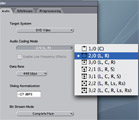
want stereo rather than 5-track surround sound
- select
"2/0 (L, R)" in the 'audio' panel
- if you use the
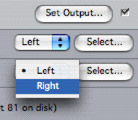
'batch' method to do several at once, watch out when you select the
source input: oddly enough, both channels are set to 'left' by default,
make sure you change 'left' to 'right' as appropriate
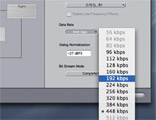
- data-rate
192 or 224 is fine for stereo:the
default 448 is only for Dolby 5.1
- preprocessing:
compression = none
|
|
|
|
-
click for a closer view - |
4. Create your DVD project in DVD Studio
- check that
it has used the AAC audio files rather than the AIFF
- you might
trash the AIFF or move it out of your active folder
- don't forget
to add sounds to menus
- all audio
has to be in exactly same format
- check
the length is right
- half-volume
can be good
5.
Build in DVD Studio
This has some
advantages over the simple alternative, to burn direct: at first I had problems
with DVD Studio failing to burning without an explanation, which I could identify
when I separated the build and burn processes; 'build' creates the whole project
on your hard disc, so you can test in the Mac's DVD player, saving time and
avoiding wasting discs if it's not what you want; it also gives you the alternative
of burning in the background, using Toast
- preferences
> track: 'fix invalid markers'
- preferences
> encoding: select NTSC or PAL
- preferences
> encoding: 'encode on build'
- inspector
> disc: select NTSC or PAL
- inspector
> tracks:
- set End
Jump
- set Remote
Control > menu
6. Burn
- you might
do it in DVD Studio; but Toast 6 is known to work well in the background without
buffer underrun, I haven't established whether DVD Studio does that
- I haven't
yet explored whether or not there are there differences in time, quality,
or reliability between the two apps; I had an idea that a cartoon-film worked
less well in Toast
- in Toast
- select
'data > advanced > DVD-ROM'
(if you selected 'video > DVD' you would be asking Toast to start the
encoding again, and use its own primitive DVD interface)
- drag
the VIDEO_TS and AUDIO_TS folders to the window
- change
the default name of the disc from 'My disc' to whatever you want
- and now (2007) burning in the Finder is a real option, if you don't want to afford Toast: on my MacBook Pro it's horribly slow, produces lots of errors, and takes all day because it doesn't offer you faster than x2 speed and it seems you can't skip the long verification process; fortunately I still have my G5 PowerMac with Toast, which is 4 or 5 times faster and produces virtually no errors
| Delightful,
empowering: |
Great
promises not fulfilled, and five days wasted: |
Fine
for what it does: |
The
smooth - and via eBay even affordable!
- solution: |
Capturing video and
making a DVD in Mac OS Panther |
|
|
|
|
|